Rambush
Portfolio
Bringing my old, inaccessible SSD back to life
Sept 2026
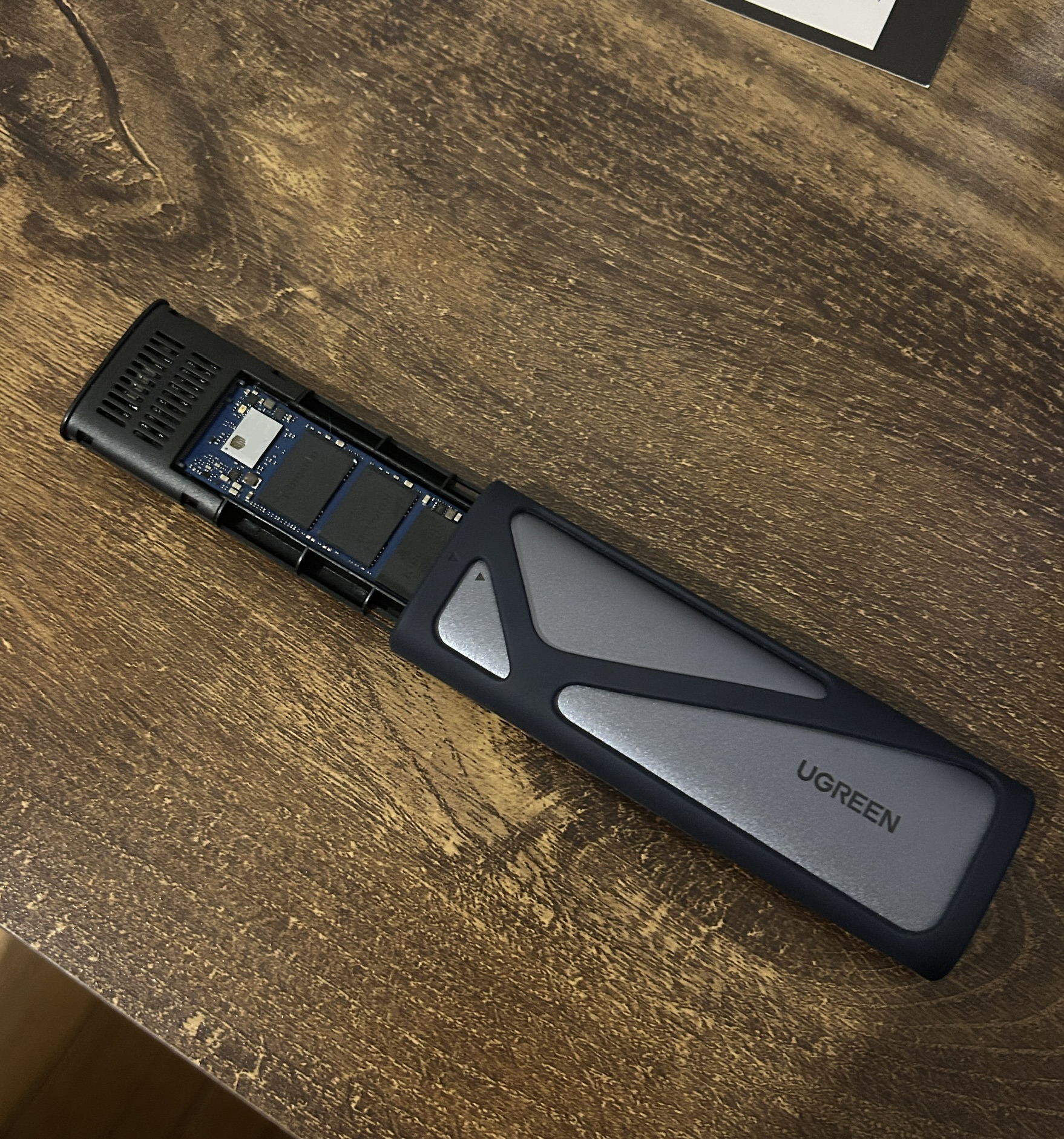
Completely bricked
About 2 years prior to this post, the internal SSD card for my gaming PC completely died, it started with minor issues, with occasional boot drive failure which would come and go intermittently and usually didn’t last more than 2-3 restarts, until one day I was completely unable to boot my PC as the SSD wasn’t even showing up in BIOS anymore and nothing I did fixed it.
This was unfortunate as it was a 2TB Kingston NV3 SSD that I have only been running for a few years (unfortunately longer than the warranty covered)
After a whole day of messing around with it trying to make it boot (hell, even register in BIOS), I just ordered a new, unfortunately smaller and more expensive 1TB SSD as prices had shot up since I first got my PC. I decided to keep the old broken SSD just in case.
Curiosity
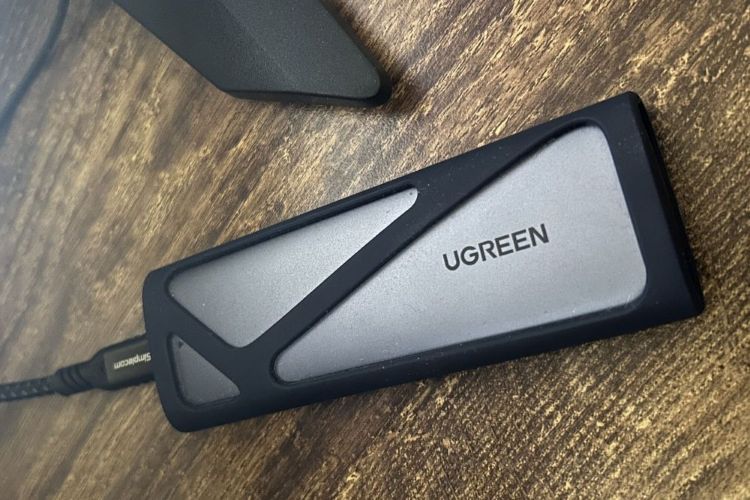
2 years later I got curious and whacked the old broken SSD into an enclosure and tried to access it from my windows computer to see if I could either recover some data, or even find a sliver of hope of restoring the damn thing.
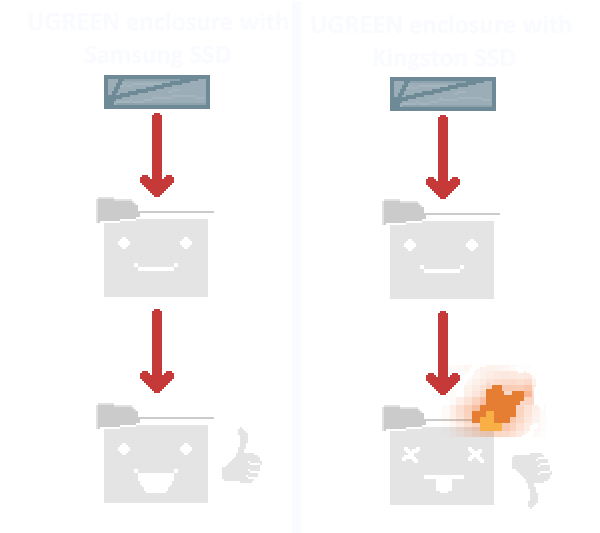
I got neither of those, after plugging the broken SSD into my windows computer and opening the file explorer, an external device was visible, however it had no assigned drive letter and the system could not determine how large the device was. Clicking on the enclosure from the file explorer resulted in the entire file explorer crashing (I tried this several times always with the same result). To rule out the enclosure I swapped a samsung SSD into it and windows was able to interact with it completely fine, something about the broken Kingston SSD was killing windows file service when it tried to read it.
From here I decided to try looking at diskpart in the hopes that breaking away from the file explorer GUI would somehow give me more information. At first there was nothing, but after trying again there was a glimmer of hope, after a long hang-period, diskpart reported the SSD card with the correct size.
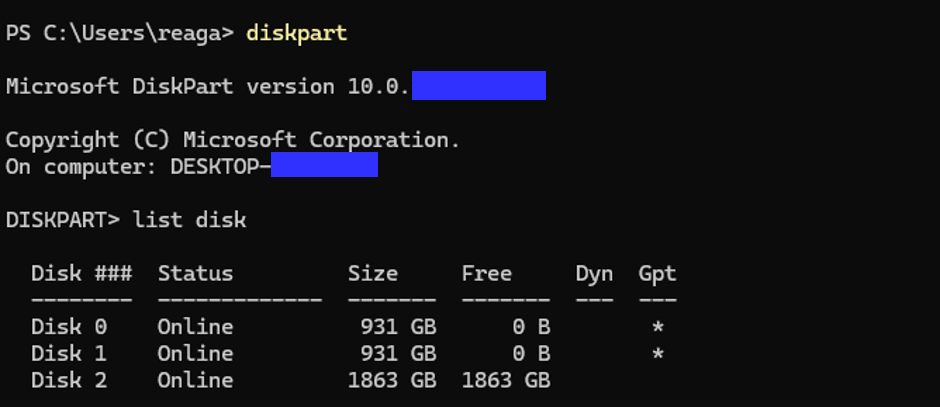
However this victory was short lived, attempting to select disk 2 from the menu here was impossible as the computer somehow couldn’t locate it anymore after the diskpart output.
Linux will save us
Refusing to give up I decided to switch tacts entirely, maybe windows was the issue. I booted up a Kali Virtual Machine and routed the external SSD enclosure device I was using to the VM instead of my host machine. This is where things got interesting.
The first thing I tried was the command lsblk and it consistently listed the 1.8tb storage device every time, this was good…
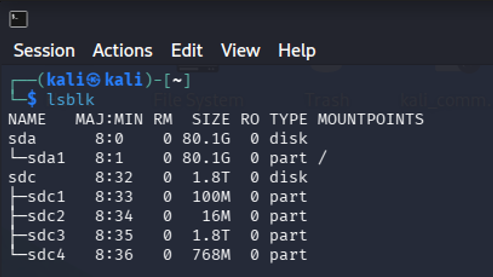
maybe I could access the drive from Kali’s file explorer and take a look… nope, the drive was completely inaccessible in the file explorer in Kali too. However an interesting note is that Kali correctly identified the model of SSD and displayed it as the connected device in the file system, it just wasn’t clickable.
Let's start trying to delete stuff
It was obvious that I needed to keep trying to interact with the drive from the command window, so my first test was to wipe the first 10mb of the drive in an attempt to destroy the partition table and potentially remove the old boot partition that I suspected was causing issues. I used the command:
sudo dd if=/dev/zero of=/dev/sdc bs=1M count=10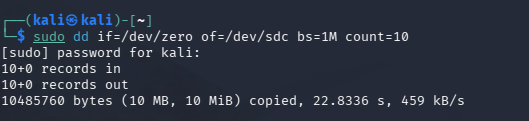
And after a whopping 22.8 seconds, the first 10mb were successfully wiped from the drive, this was simultaneously great news and terrible news. On one hand, the drive IS writable which is great progress from not even being able to access it, on the other hand… deleting 10mb took nearly 23 seconds, giving us a painfully slow write speed of 459 kB/s on a modern Kingston SSD that’s rated for up to 5,000 MB/s, which is about 5 million kB/s so we are writing to the disk at about 0.009% of the max rated speed, not good.
Next I wanted to try deleting a bigger chunk of the drive’s data, so I ran the same command again but passed 1000 into the count argument to try and wipe a full gigabyte from the drive, it failed completely as the VM had somehow lost track of the enclosure and wasn’t able to see it anymore, so I unplugged the enclosure and plugged it back in, retried lsblk again and it was once again visible to the VM, from there I repeated the 1gb wipe command and let it do it’s thing.
sudo dd if=/dev/zero of=/dev/sdc bs=1M count=1000 conf=fsync
It worked, this time at a much faster rate of 22.9 MB/s (roughly 0.4% of the max rated write speed for the SSD). It successfully wiped 1gb of data in 45 seconds. Once again though after trying to repeat the same command again and delete another 1gb to test, the VM could not detect the device, this was becoming a consistent pattern. VM detects SSD on plugin, I execute 1 write command, SSD drops off the VMs radar and I need to re-plug it.
Scorched Earth
My next idea was to try and wipe the whole drive with a single command which was my original plan anyway, now that I had seen I could write to the device (however slowly) it should be possible to wipe the entire thing in one shot.
So i ran ddrescue to flip everything to 0:
sudo ddrescue –force /dev/zero /dev/sdb /root/wipe.log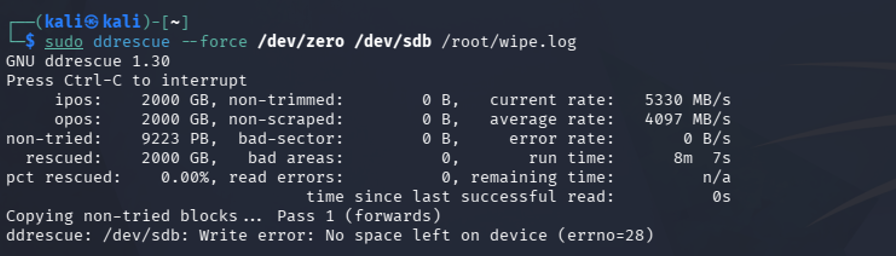
It ran for about 8 minutes at the correct read and write speed for the drive… very good, I then re-plugged the enclosure and tried to read some of the data using:
sudo dd if=/dev/sdb bs=1M count =100 status=progress | xxd | head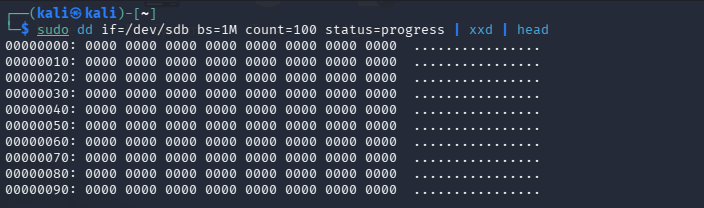
YES! All 0’s is just what I wanted to see, I had wiped the drive.
But does it work?
Now that the SSD was a clean slate I started trying to mount it on the Kali VM again and actually access it via the file system.
sudo mount /dev/sdb1 /mnt/kingston
This didn’t work, which was no surprise because /dev/sdb1 no longer existed because I zeroed the whole drive, I don’t know why I tried this.
I needed to try and format the disk again so it was usable so I ran:
sudo mkfs.ext4 /dev/sdb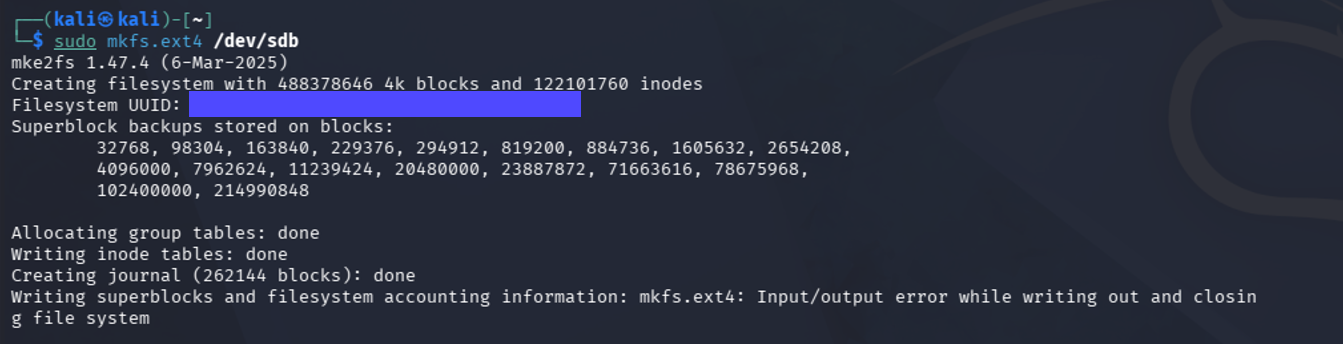
It worked partially and only failed at the very last step when it tried to write the superblock and filesystem accounting info, I tried this several times with the same result and any other attempts to mount the drive unsurprisingly gave me this error which is consistent with the incomplete formatting command.

Change strategy
At this point I was feeling pretty deflated, I even asked Claude what it thought the issue was given the entire command context and the symptoms and it told me the SSD hardware was likely cooked and I should just throw it in an E-waste bin down at officeworks.
My last ditch hail mary was to plug the enclosure back into my windows host machine, upon running diskpart again… the drive instantly appeared without any hang time, I could even select it AND the detail command returned the full SSD information including the model, Disk ID and available volumes.
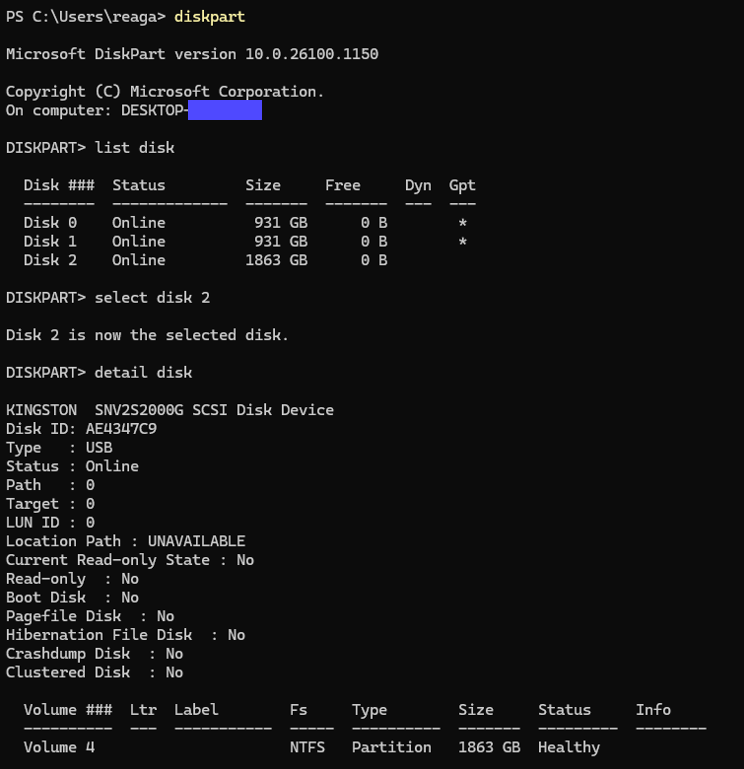
I genuinely couldn’t believe it, I selected the displayed volume, assigned it a drive letter... and it worked… the drive was now fully accessible via windows file system.
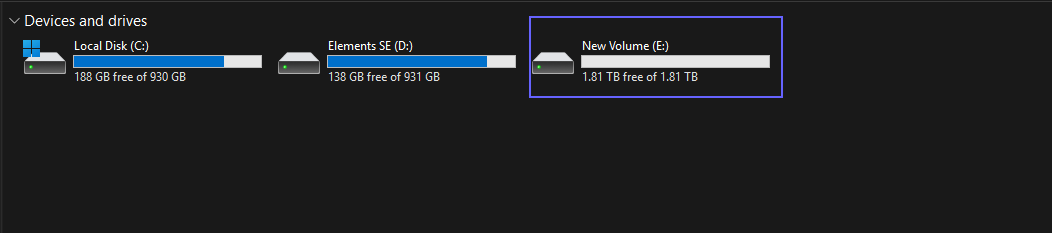
But beyond that, the drive was now fully writable and only rate limited by the speed of the enclosure it was in, I copied a 50gb video from my desktop to the drive and after a minute or 2 it was completely visible and accessible on the drive with 0 corruption, I could even watch the video in media player with no issues whatsoever.
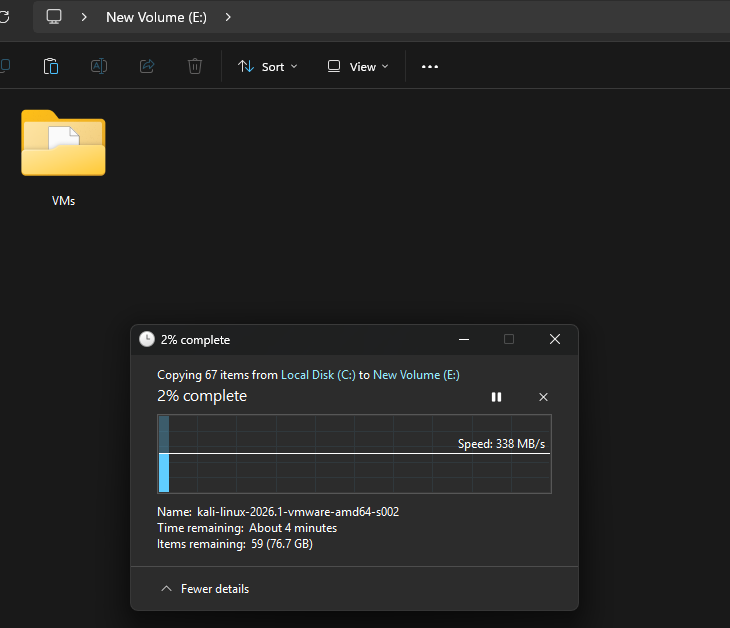
The disk drive now worked completely fine, and I genuinely still have no idea why. was the partition table corrupted? Probably but why did the drive continue to not work after I wiped it in kali? And why was I able to completely wipe the disk to zeroes using ddrescue but then formatting the disk was still impossible as it kept failing the final step? Everything points to a hardware issue but now it just works for some reason? I have been using it for weeks now and there are 0 issues with it, crystaldiskinfo even reports the drive as completely healthy at 99% so there’s likely no apparent hardware issues with the drive at all.
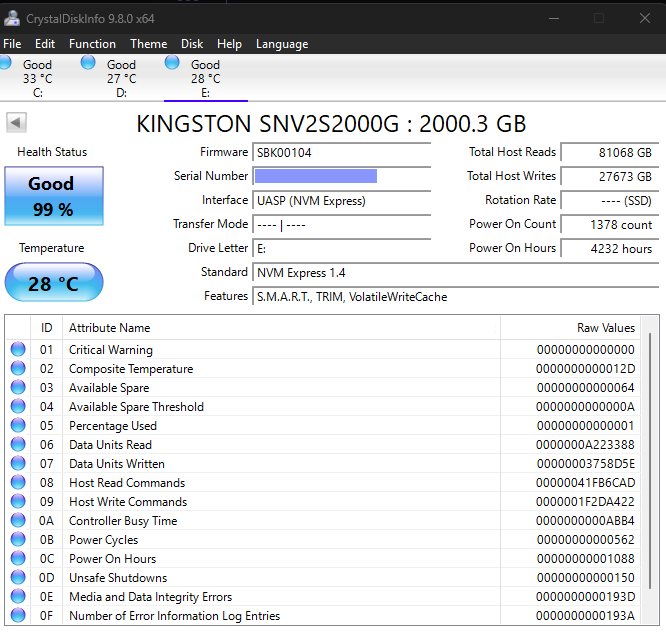
Either way I am stoked I was able to get it working after a couple of hours of pulling my hair out and nearly giving up several times.
Feel free to email me via my contact page if you are an expert on this stuff and have some insight into what the root cause could have been.
Back to portfolio